How to Fix the Orange Icon in WampServer (Windows): Step-by-Step Guide

Table of Contents
If you’re getting started in web development and using Windows, WampServer is probably one of your go-to options for running a local server — and you’re likely dealing with the same frustrating issue everyone runs into: the dreaded orange icon, which tells you that only 2 out of 3 services are currently running. In this post I’ll show you how to fix it.
1. Install All Visual C++ Redistributable Packages
Wamp depends on several versions of the Visual C++ Redistributable, not just the Visual Studio 2012 one. If any of them are missing, Apache or MySQL services will fail silently and you’ll see the orange icon. The quickest fix in 2026 is to install the official “Visual C++ Redistributable” 2015–2022 package from Microsoft, which covers virtually all modern dependencies:
Install both the x64 and x86 versions, then restart your PC.
2. Apache Problems
Another very common issue in Wamp is that the Apache service won’t start because port 80 is already in use by another process. In 2026 the usual culprits are:
- IIS (Internet Information Services) enabled on Windows — it often starts Apache through services like “Web Deployment” or “World Wide Web Publishing Service”, which grab port 80.
- Docker Desktop with a container published on
:80. - Microsoft SQL Server Reporting Services or similar enterprise applications.
- (Historically, Skype used it too; current versions no longer do.)
Close or disable whichever service is using the port, then restart Wamp.
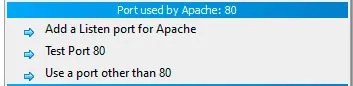
To find out exactly which program is using port 80, you can use WampServer’s built-in tools (right-click the Wamp icon in the system tray) and select “Test Port 80”.
If the problem persists, you can also change Apache’s default port from the same WampServer Tools menu by selecting “Use a port other than 80”.
WampServer Tools
3. MySQL or MariaDB Problems
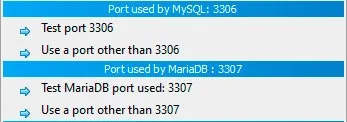
Just like with Apache, one of the issues you might run into with your MySQL or MariaDB installation is a conflict on port 3306, the default port for these services. The same approach applies: use WampServer Tools to check the services and/or change the default port.
WampServer Tools
Conclusion
That should take care of your orange or red WAMP server icon. If it’s still not working after trying these steps, leave a comment describing your problem and I’ll be happy to help you sort it out.
💡 If you’re tired of fighting with Wamp, in 2026 it’s worth giving Laravel Herd a shot — it’s free, requires no port configuration, and supports multiple PHP versions side by side. For local WordPress development, Local by Flywheel is a highly recommended alternative.
If this post helped you, feel free to share it on your social networks. Cheers!
Found it useful? Get the next one by email
Once a week: what breaks when you upgrade, AI for developers and what I'm building, with sources. No spam.
By subscribing you accept our privacy policy.