How to Install PHP on Windows in 2026: 5 Easy Options (Herd, XAMPP, WAMP, Docker, WSL2)

Table of Contents
Installing PHP on Windows
PHP remains one of the most widely used languages on the web in 2026, powering WordPress, Laravel, Symfony, and thousands of applications. If you’re on Windows, there are five paths to get PHP running on your machine, listed from most to least recommended depending on your use case.
🥇 Quick 2026 recommendation: for Laravel development or any modern PHP project, use Laravel Herd. For local WordPress, XAMPP or WampServer. For Linux environments identical to production, WSL2 + Docker.
1. Laravel Herd (the recommended option in 2026)
Laravel Herd is a free desktop installer that gives you PHP, Nginx, Node.js, and a ready-to-use Laravel installer in a single step. No manual configuration required, and it supports multiple PHP versions in parallel (8.2, 8.3, 8.4, 8.5).
Advantages:
- Zero configuration: download, install, and
phpis already in your PATH. - Switch PHP versions per project with a single click or command.
- Automatically serves sites at
.testdomains without touchinghostsor configuring Nginx. - The Pro version includes Xdebug, integrated MySQL/Postgres, and support for Reverb/Octane.
Installation:
- Download Herd from herd.laravel.com.
- Run the installer.
- Open Herd and verify it recognizes PHP 8.4.
- In the terminal:
php --version
laravel new my-project
2. Manual PHP Installation
If you want to understand what’s happening under the hood, a manual installation is still educational. Download the PHP installer package from the official website. Choose the NTS (Non Thread Safe) package if you plan to use it with Nginx/PHP-FPM, or TS (Thread Safe) if you’re integrating it with Apache.
Once downloaded, extract it to a folder like C:\php, add that path to Windows’ PATH environment variable, and rename php.ini-development to php.ini. Verify everything is set up correctly with:
php -v
Keep in mind that a manual installation does not include a web server — you’ll need Apache, Nginx, or the built-in server (php -S localhost:8000).

Official PHP for Windows download page
3. Installing PHP with XAMPP
XAMPP is the classic all-in-one package: it includes Apache, MariaDB (or MySQL), PHP, and Perl. It’s still a very solid option if you work with WordPress, PrestaShop, Joomla, or any traditional LAMP-based project.
Installation:
- Download the latest version from apachefriends.org. In 2026 the current version includes PHP 8.3/8.4.
- Run the installer (recommended to install in
C:\xamppto avoid permission issues). - Open the XAMPP control panel and start Apache and MySQL.
- Verify by opening
http://localhostin your browser.
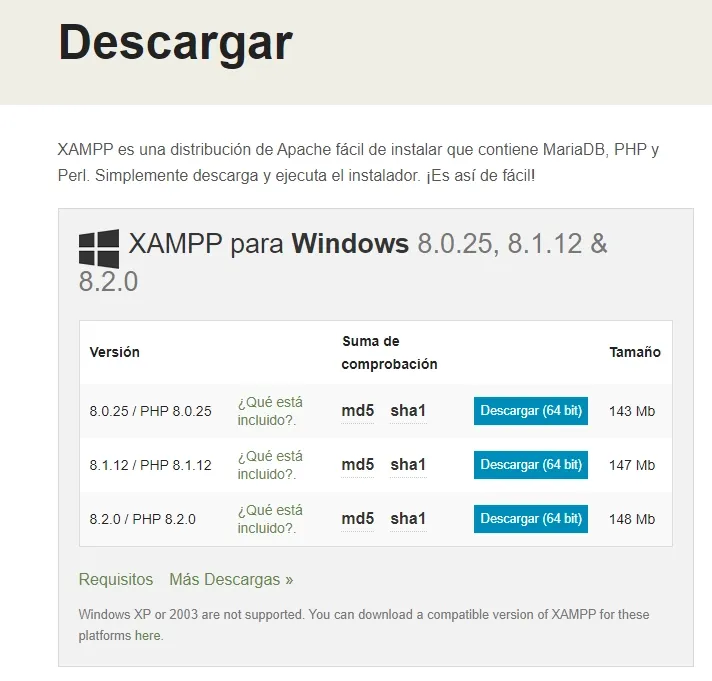
Official XAMPP installation page
4. Installing PHP with WampServer
WampServer is similar to XAMPP but Windows-only and with slightly more granular control over Apache. It has very active maintenance, an established community, and handles multiple parallel PHP versions particularly well.
Installation:
- Download the latest version from wampserver.com.
- Run the installer and leave it at the default path (
C:\wamp64). - Start WampServer; the system tray icon should turn green.
- Open
http://localhostto confirm.
If the icon stays orange, I have a dedicated guide on how to fix it.
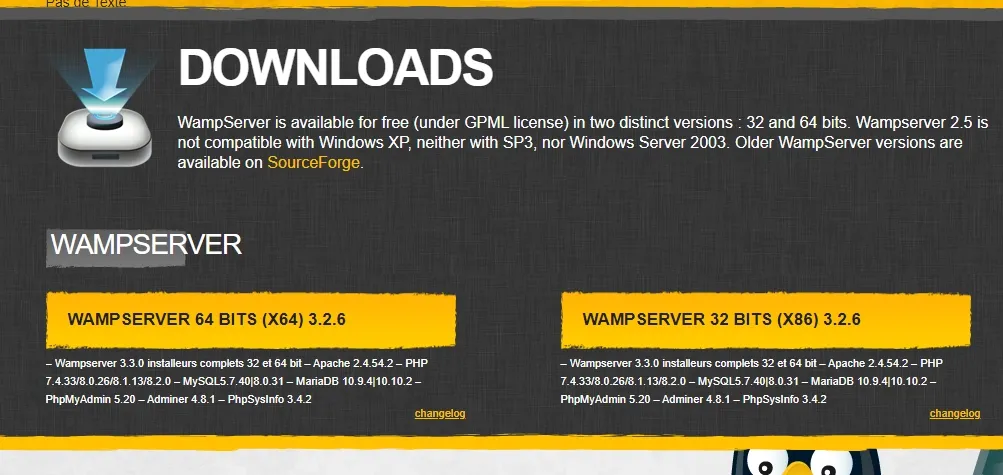
Official WampServer installation page
5. Installing PHP with Docker
Docker Desktop lets you spin up containers with any combination of PHP, database, and web server in seconds, without touching the host operating system.
Create a minimal docker-compose.yml:
services:
  app:
    image: php:8.4-fpm-alpine
    volumes:
      - ./src:/var/www/html
  web:
    image: nginx:alpine
    ports:
      - "8080:80"
    volumes:
      - ./src:/var/www/html
      - ./nginx.conf:/etc/nginx/conf.d/default.conf
    depends_on:
      - app
Then start it with docker compose up -d.
This is the best option if your team works with stacks identical to production or if you need to switch between very different PHP versions (5.6, 7.4, 8.4) without breaking anything.
If you want to properly understand what you are spinning up — images, layers, Dockerfile, Compose v5 and production best practices — it is all in the complete Docker guide for 2026.
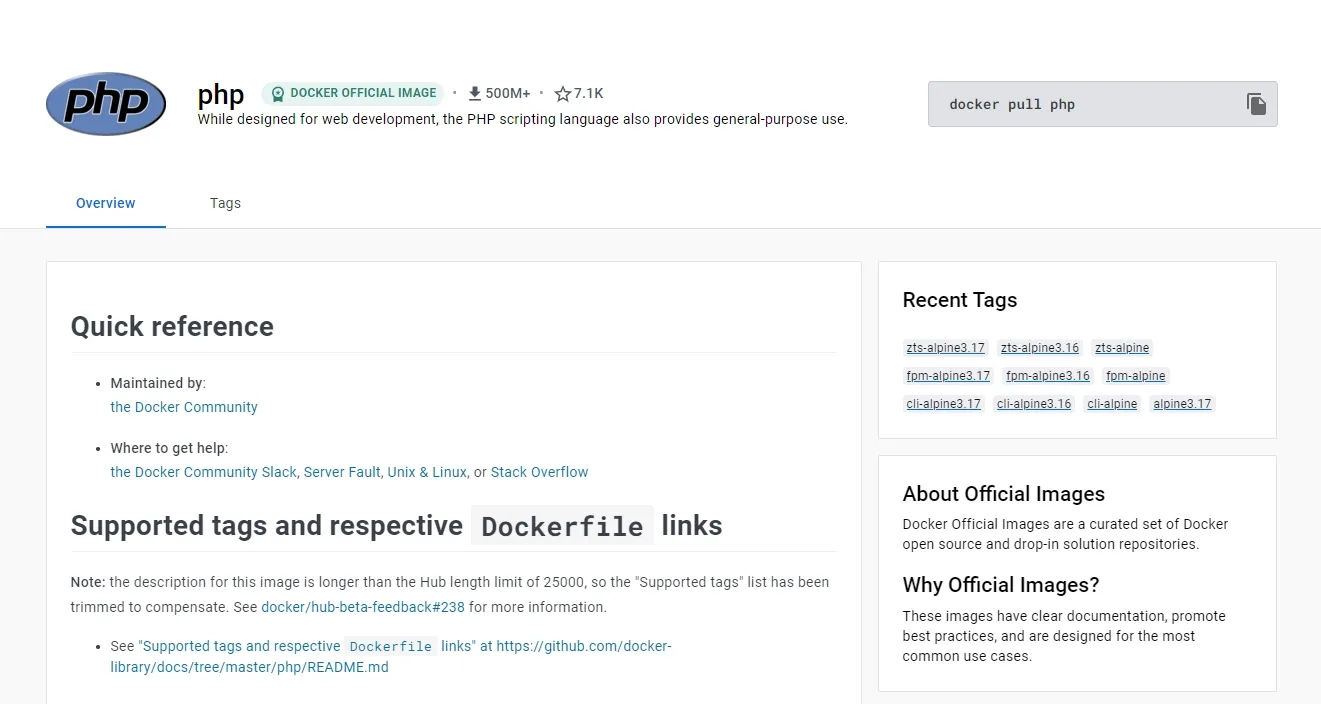
Official PHP on Docker installation page
Bonus: WSL2 (Linux inside Windows)
Windows 11 includes WSL2 (Windows Subsystem for Linux), which lets you run a native Linux distribution inside Windows with virtual-machine-level performance. It’s the favorite option for many advanced developers because it gives you exactly the same environment as a production server.
# From PowerShell as administrator
wsl --install -d Ubuntu
Once inside Ubuntu:
sudo apt update
sudo apt install php8.4 php8.4-cli php8.4-fpm php8.4-mysql php8.4-curl php8.4-xml php8.4-mbstring composer -y
php --version
Combine WSL2 with Laravel Herd Pro (yes, Herd works from WSL too) or with Docker to get the best of both worlds.
Which one should you choose?
| Your situation | Recommendation |
|---|---|
| Laravel development / modern projects | Laravel Herd |
| WordPress / classic LAMP sites | XAMPP or WampServer |
| Multiple simultaneous PHP versions | Docker or Herd |
| Replicating a Linux production environment | WSL2 + Docker |
| Learning what’s going on under the hood | Manual installation |
Conclusion
In 2026, there’s no excuse for spending half an afternoon setting up PHP. If you’re doing Laravel, install Herd and forget about it; for WordPress, XAMPP or WampServer are still excellent choices; and if you’re working in a team with a reproducible stack, Docker or WSL2 are the safe bet.
Once you have PHP ready, the natural next step is to install Laravel — read How to Install Laravel 13 to continue.
Found it useful? Get the next one by email
Once a week: what breaks when you upgrade, AI for developers and what I'm building, with sources. No spam.
By subscribing you accept our privacy policy.