How to Install Node.js (npm) on Windows, macOS and Linux: 2026 Guide with nvm, fnm and Volta

Table of Contents
In this article I’ll show you how to install Node.js on Windows, macOS and Linux with recommendations updated for 2026. The interesting part: if you plan to work across multiple projects, installing the binary directly isn’t the best option — a version manager like fnm, nvm or Volta will save you a lot of headaches.
What is Node.js?
Node.js is an open-source runtime that executes JavaScript outside the browser, built on Chrome’s V8 engine. It lets you use JavaScript on the backend too (APIs, CLI tools, scripts) and is the foundation of virtually all modern frontend tooling: Vite, Webpack, ESLint, Prettier, Next.js, Astro, etc.
Which version to install in 2026?
Node.js releases a new major every year in April. The current scheme:
| Version | Status as of May 2026 | Recommended for |
|---|---|---|
| Node 26 | Current (released: May 2026) | Trying new features, not production yet |
| Node 24 | Active LTS ✅ | New projects and production |
| Node 22 | Maintenance LTS | Already-stable production projects |
| Node 20 | End of life | Migrate as soon as possible |
| Node 18 and below | End of life | Do not install |
For any new project in 2026, install Node 24 LTS.
📌 Starting October 2026, Node.js is changing its release scheme: one major per year in April, automatic promotion to LTS in October, and the “even/odd” distinction is being dropped. So get ready for your next upgrade to simply be “Node 27 LTS” in October.
The recommended approach: a version manager
Before downloading the official installer, consider using a version manager. Working across multiple projects with different Node versions (one legacy project on Node 20, another on 24) is the norm, not the exception. These are the three solid options in 2026 (and if you’re torn between them, I have a dedicated comparison: nvm vs fnm vs Volta):
fnm (Fast Node Manager) — the recommended choice
Written in Rust, cross-platform (Windows, macOS, Linux), extremely fast, and with automatic version switching by reading .nvmrc when you change directories.
Installation on Windows (with winget):
winget install Schniz.fnm
Installation on macOS/Linux:
curl -fsSL https://fnm.vercel.app/install | bash
Usage:
fnm install --lts        # installs the current LTS (Node 24)
fnm use lts-latest
fnm default lts-latest
node --version
Volta — version manager with per-project pinning
Volta is the most popular alternative among JavaScript teams: it pins (pin) the Node version and package manager in package.json and respects them automatically. Ideal if you want the whole team to use the exact same version without any extra configuration.
# Install Volta (Windows with winget)
winget install Volta.Volta

# Install and pin Node in a project
volta install node@lts
volta pin node@24
nvm-windows / nvm
The veteran option. nvm for macOS/Linux and nvm-windows for Windows. It works, but it’s noticeably slower than fnm and Volta. I’d only recommend it if you’ve been using it for years.
Installation with the official installer
If you prefer a straightforward setup without a version manager (perfectly valid for beginners or simple environments), download the installer from nodejs.org.
Windows
- Go to nodejs.org and download the Windows Installer (.msi) for the LTS version (24.x in 2026).
- Run the
.msiand accept the default values. - The installer includes
npmand, if you check the box, the Tools for Native Modules (Chocolatey + Python + Visual Studio Build Tools) required by some native dependencies.
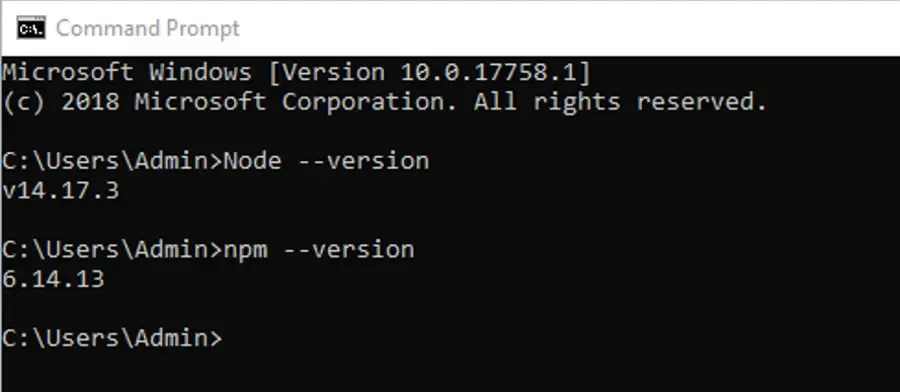
Verify:
node --version    # should show v24.x.x
npm --version
macOS
Three options, from most to least recommended:
Option A — Homebrew:
brew install node@24
brew link --overwrite --force node@24
Option B — fnm:
brew install fnm
fnm install --lts
Option C — Official .pkg installer: download from nodejs.org and double-click. The simplest option, but the worst if you plan to use multiple versions.
Linux (Ubuntu/Debian)
# Using NodeSource (official)
curl -fsSL https://deb.nodesource.com/setup_24.x | sudo -E bash -
sudo apt-get install -y nodejs
For Arch:
sudo pacman -S nodejs-lts-iron npm
For Fedora:
sudo dnf install -y nodejs:24
Beyond npm: pnpm, Yarn and Bun
npm ships with Node and works perfectly fine, but in 2026 many developers prefer alternatives:
- pnpm: uses a global store with hard links to avoid duplicating packages. Install it with:
npm install -g pnpm. It saves gigabytes and is noticeably faster on large projects. - Yarn: npm’s historical competitor. Yarn Berry (v4+) brings solid cache improvements and “Plug’n’Play” mode.
- Bun: more than just a package manager — it’s also an alternative runtime to Node written in Zig. As a package manager it’s very fast (5–10× faster than npm); as a runtime it doesn’t yet replace Node in every scenario but it’s gaining ground.
If you’re just getting started, stick with npm. When you get tired of long install times, try pnpm.
Keeping npm and Node up to date
Update npm:
npm install -g npm@latest
Update Node using a version manager (much easier than reinstalling):
fnm install --lts
fnm use lts-latest
Verify the installation
node --version    # v24.x.x
npm --version     # 11.x or higher
And test a one-liner HTTP server:
node -e "require('http').createServer((_,r)=>r.end('Hello Node 24')).listen(3000)"
Open http://localhost:3000 and you should see the greeting.
Conclusion
In 2026 the best way to install Node.js depends on your situation: if you just want one version and won’t be switching, the official installer works great; if you’re working seriously, install fnm or Volta and use them with Node 24 LTS. And consider switching to pnpm when you hit your first real monorepo project.
Once you have Node ready, you can move on to any of the frameworks I cover on this blog: Best JavaScript Frameworks 2025–2026 or Astro.js in 2026.
If this article helped you, feel free to share it. Cheers!
Found it useful? Get the next one by email
Once a week: what breaks when you upgrade, AI for developers and what I'm building, with sources. No spam.
By subscribing you accept our privacy policy.