Ollama on an AMD GPU: Five Failures That Drop You to CPU Without Telling You

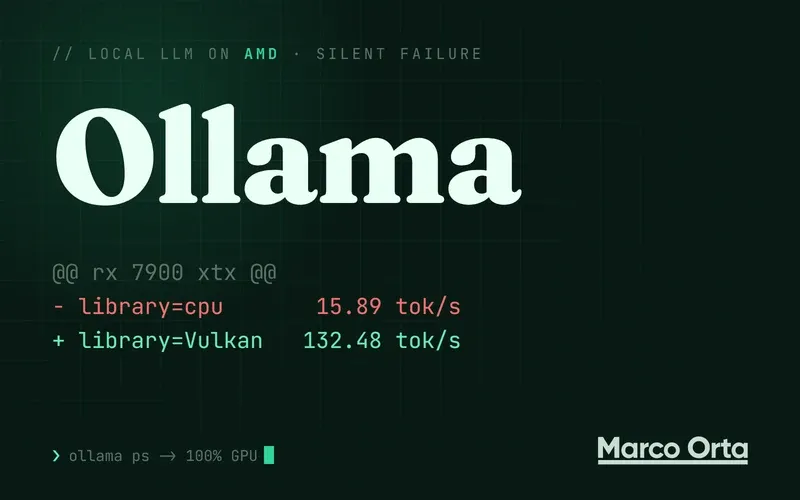
Table of Contents
The worst Ollama failure on an AMD GPU isn’t the one that takes your server down. It’s the one that takes nothing down: Ollama starts, responds, answers correctly — and does it on CPU, at 15.89 tokens per second instead of 132.48. An 8.3x penalty that shows up in no log unless you go looking, because as far as Ollama is concerned that isn’t an error. It’s a fallback.
This article is the summary of three weeks measuring a 24 GB Radeon RX 7900 XTX on a Ryzen 9 7950X3D, across Windows, native Linux and inside WSL2. It isn’t an install guide — there are plenty of those — but an inventory of the five ways this setup breaks without saying so, with the numbers for each and with what I proved doesn’t fix them, which is usually the more useful half.
The tok/s here belong to one specific card in one specific environment. What does transfer verbatim are the failure modes and the method for catching them.
First: the thirty-second check
If you take one thing from this article, take this. Ollama probes the GPU exactly once, at startup, and never looks again. So there are two questions to answer every time, and neither is answered by noticing that the chat “feels fast”:
1. Which backend did the server declare at startup? It’s in the startup log (%LOCALAPPDATA%\Ollama\server.log on Windows, journalctl -u ollama on Linux):
library=Vulkan compute=0.0 name=Vulkan0 description="AMD Radeon RX 7900 XTX"
libdirs=ollama,vulkan  total="24.0 GiB" available="23.2 GiB"
What you’re looking for is library=. If it says cpu, that’s it: there is no GPU, and nothing else is going to tell you.
2. Did the model load in full? ollama ps gives you the split:
ollama ps
# NAME              SIZE     PROCESSOR
# gpt-oss:20b       16 GB    100% GPU
Anything that isn’t 100% GPU is a model split between GPU and CPU, and that doesn’t raise an error either.
One detail that cost me a whole verifier script: don’t require compute=gfx1100 or a pci_id. The Vulkan backend reports compute=0.0 and pci_id="" where ROCm gave real values, so a script checking those fields will fail a perfectly healthy system. Read library= and libdirs=, nothing else.
Failure 1: the CPU’s integrated GPU steals the job
This one is treacherous because the guilty hardware isn’t the hardware you’re looking at.
If you have a desktop Ryzen with integrated graphics — nearly all of the 7000 series and later do — your machine has two AMD GPUs, not one. And ROCm’s enumeration orders them however it likes:
ROCm0: AMD Radeon(TM) Graphics (36694 MiB)   <- the integrated one
ROCm1: AMD Radeon RX 7900 XTX (24560 MiB)
The integrated one comes first and reports 36 GB of VRAM (which it doesn’t have: that’s system RAM). llama.cpp binaries pick it, load kernels compiled for gfx1100, and blow up:
ggml-cuda.cu:106: ROCm error
ROCm error: device kernel image is invalid
  current device: 1, in function ggml_cuda_kernel_launch
What doesn’t fix it — and I tried everything before giving up:
| Attempt | Result |
|---|---|
--device ROCm1 (pick it by name) | ⛔ same error |
HIP_VISIBLE_DEVICES=0 and =1 | ⛔ same error, or “no usable GPU found” |
ROCR_VISIBLE_DEVICES=1 + --device ROCm0 | ⛔ same |
ROCBLAS_TENSILE_LIBPATH to the kernel directory | ⛔ same (the gfx1100 kernels were there) |
What does fix it: disabling the integrated GPU in the BIOS. With a single device there’s nothing to pick wrong and it starts first try, with no flags:
| before | after | |
|---|---|---|
--list-devices | integrated + dedicated | only the RX 7900 XTX |
standalone llama-server | ⛔ kernel image is invalid | ✅ 136 tok/s |
| Ollama | 118 tok/s | 132.5 tok/s |
The reasonable fear was losing VRAM by moving the monitor onto the dedicated card. Measured: it costs 0.2 GiB. With the display running 3440×1440 at 165 Hz off the big card, Ollama still reports total 24.0 GiB / available 23.8 GiB. The trade is free.
And a note so you don’t lose your mind: under Ollama this doesn’t happen, because Ollama masks the integrated GPU on its own and to it the dedicated card is ROCm0. That’s why you can have Ollama working and llama-server failing on the same machine with the same weights. You’re not imagining it: they’re two different enumerations.
Failure 2: updating anything resets the backend
I said it above, but it earns its own section because it’s the most expensive one: Ollama probes the GPU at startup and that’s it.
After an AMD driver reinstall, the service just carried on like this:
inference compute id=cpu library=cpu
No error. No warning. 15.89 tok/s against 132.48. Restarting Ollama put it back on library=ROCm compute=gfx1100 and back to 132.
There’s a second version of the same failure, and it’s worse because you don’t trigger it: every Ollama update reinstalls the ROCm bundle. If you’d deliberately switched to Vulkan, the update quietly puts you back on ROCm. Nobody tells you; the number you’d been measuring for weeks simply stops being the same number.
The operating rule that came out of this: run the check after touching drivers, BIOS or Ollama version. Not after something goes wrong — after touching anything, always, even when nothing seems wrong.
Failure 3: inside WSL2 there is no GPU for Ollama, and there won’t be
This is the one that ate the most time, so here’s the detail so it doesn’t eat yours.
The question was reasonable: if native Linux beats Windows by 6.7 to 19.5% in tok/s, can I take it inside WSL and skip the reboot? The answer is that Ollama in WSL doesn’t use the GPU at all. And it isn’t a driver problem.
What I measured, in order:
| Check | Result |
|---|---|
/dev/kfd and /sys/class/kfd | ⛔ don’t exist |
/dev/dxg | ✅ exists (the WSL path) |
| Does HIP compute in WSL? | ✅ YES — probe built with hipcc: hipGetDeviceCount rc=0 n=1, gfx1100 |
| Ollama detects GPU | ⛔ library=cpu |
HSA_ENABLE_DXG_DETECTION=1 | ⛔ changes nothing |
llama-server --list-devices with ROCm | ⛔ Available devices: (none) |
llama-server --list-devices with Vulkan | ⛔ Available devices: (none) |
The paradox that explains it: HIP does work in WSL, through the HSA runtime that talks to /dev/dxg. But Ollama enumerates GPUs by reading the KFD topology from sysfs, which WSL doesn’t expose. The driver isn’t missing — Ollama is looking through a door WSL doesn’t have.
With OLLAMA_DEBUG=1 the real cause surfaces, otherwise buried:
failure during llama-server GPU discovery
error="llama-server --list-devices failed: signal: segmentation fault (core dumped)"
There’s a recipe going around — Ollama issue 16551, which is the identical case: same card, same WSL2, same ROCm 7.2 — whose author reports library=ROCm compute=gfx1100 at 100% GPU by dropping in the ROCm bundle and setting HSA_ENABLE_DXG_DETECTION=1. Tried here, does not reproduce.
What about the Vulkan backend? In WSL it would need the dzn ICD (Vulkan over D3D12), which Ubuntu doesn’t package. You could build Mesa with -Dvulkan-drivers=microsoft-experimental and see what happens, but that’s a lot of work for an uncertain payoff.
Practical conclusion: for Ollama, WSL is out. The two exits are Windows Ollama (which does use the GPU, and is what exists today) or booting native Linux. And if you develop inside WSL like I do, the good news is you don’t need to move Ollama: with WSL2 in networkingMode=mirrored, localhost:11434 from WSL reaches Windows Ollama with zero configuration.
Failure 4: the model doesn’t fit, gets split, and keeps answering
When you ask for more context than fits in VRAM, Ollama doesn’t say no. It splits the model between GPU and CPU and carries on. The symptom is size_vram < size in /api/ps, and nothing else.
Measured with qwen3.8 (27.3B) on the 7900 XTX, with OLLAMA_FLASH_ATTENTION=1 and the KV cache at q8_0:
num_ctx requested | On GPU |
|---|---|
| 262,144 | ⛔ 63.4% — a third on CPU |
| 131,072 | ⛔ 92.4% |
| 122,880 | ✅ 100% (with 0.6 GiB of headroom) |
With 0.6 GiB free, anything you open on the desktop knocks it over. That ceiling belongs to that afternoon and that display, not to the model.
And here’s the warning that nearly cost me a bad decision: ollama ps underestimates real VRAM by 4.3 to 6.8 GiB. Cross-checked against the system counter, across four models:
| Model | ollama ps | Real VRAM |
|---|---|---|
gpt-oss:20b | 12.33 GiB | 16.59 GiB |
muse-glimmer (27.9B) | 15.49 GiB | 20.77 GiB |
gemma4 (25.8B) | 17.24 GiB | 22.37 GiB |
qwen3.8 (27.3B) | 16.61 GiB | 23.36 GiB |
For memory decisions, the ps column is useless. It’s only good for telling you whether Ollama split to CPU. If you’re working out whether a model fits, measure system VRAM, not what Ollama declares.
Failure 5: it trims your context and lets you believe you have it
A subtler variant of the previous one. Ask muse-glimmer or gpt-oss for num_ctx: 262144 and they load perfectly happily — and the context_length returned by /api/ps says 131072. What you asked for isn’t what you got.
The underlying cause is that these models have an architecture ceiling below the card’s. And it explains something counterintuitive that shows up when you measure: on-disk size does not predict maximum context. What decides is whether the model uses a sliding window (SWA) or dense KV:
| Model | SWA | KV growth from 16K to 128K |
|---|---|---|
muse-glimmer | 2048 | ~0 |
gpt-oss | 128 | +0.36 GiB |
gemma4 | 1024 | +0.40 GiB |
qwen3.8 | — (dense KV) | +1.35 GiB |
Three of the four hit their architecture ceiling and never notice the VRAM. The only one that actually pays for context is the only one that overflows.
Always read the real context_length from /api/ps, not the one you sent.
ROCm or Vulkan in 2026: what each one wins
This is the year’s underlying shift, and the reason this article lands now. Ollama added experimental Vulkan support in 0.12.6 and it has been reaching the binaries through 2026, with the argument of opening the door to the AMD and Intel GPUs ROCm never supported — which is most consumer cards.
On my machine, forcing each backend with the same Ollama and the same weights, Vulkan wins:
| Model | Vulkan’s gain over ROCm |
|---|---|
gpt-oss:20b | +17.8% |
gemma4 | +30.1% |
muse-glimmer | +30.3% |
Disjoint ranges across two independent rounds, so the signal is real. And it lines up with what others report: on an RX 9070 XT, Llama 2 7B Q4_0 decodes at 137 tok/s on Vulkan against 101 on ROCm.
With two caveats almost nobody adds.
First: the delta compares two things at once. On Windows it’s ROCm 7.1 against AMDVLK; on Linux it’s ROCm 7.2.4 against RADV. A worse ROCm inflates exactly the same number as a better Vulkan, and they aren’t separated.
Second is a cost I didn’t see coming. Vulkan leaves 0.6 GiB less VRAM available: 23.2 GiB declared against 23.8 with ROCm. For three of my four models it makes no difference because they weren’t near the limit. For qwen3.8, which had exactly 0.6 GiB of headroom, it eats the lot:
num_ctx | On Vulkan |
|---|---|
| 122,880 (the ROCm ceiling) | ⛔ 93.8% on GPU |
| 98,304 | ✅ 100% |
The real trade with this lever isn’t speed against stability: it’s speed against context. If your model is near the card’s limit, Vulkan costs you window. If it isn’t, it’s free.
What remains unmeasured — by me and by almost everyone — is Vulkan’s stability over multi-hour sessions. For a ten-minute chat it doesn’t matter; for an agent looping all afternoon, it does.
The full checklist
What I do now every time I touch this machine:
- Disable the integrated GPU in the BIOS if you have a Ryzen with graphics. It costs 0.2 GiB and removes an entire axis of ambiguity.
- Restart Ollama after touching drivers, BIOS or version. Not optional: it probes once.
- Check
library=in the startup log. Notcompute=, notpci_id. - Check that
ollama pssays 100% GPU before trusting any measurement. - Read the real
context_lengthfrom/api/ps, not the one you sent. - For memory decisions, measure system VRAM, not the
ollama pscolumn. - Don’t try it in WSL. Point at
localhost:11434against Windows Ollama. - Close Chrome, Spotify and Slack before measuring. Less for the tok/s than for the range: a real 2% difference disappears if noise widens it.
And the one that covers all of them: an empty result is not a zero. When an instrument returns nothing, the reading isn’t “there is none”; it’s “I couldn’t look.” On this machine, Get-Process | Modules returned 0 modules and I nearly read it as “no layers loaded.” It was 0 because the process was running elevated and I couldn’t see inside. What saved it was having a control case next to it — explorer, same user, 389 modules. Without that contrast, the zero reads as data.
If you’re weighing up the hardware
The honest conclusion after all of this: a consumer Radeon runs local models perfectly well in 2026, and the numbers sit alongside what gets published for NVIDIA in the same bracket. ROCm 7.2 is the first release where Ollama, LM Studio, llama.cpp and vLLM all work on Radeon without hand-patching.
What still costs more than on NVIDIA isn’t the tok/s: it’s the diagnosis. Everything in this article is time you wouldn’t have spent on a 4090 — not because the hardware is worse, but because the path is less trodden and the failures are silent instead of loud.
If that trade works for you — and it works for me, because 24 GB of VRAM at this price doesn’t exist on the other side — this article is the shortcut past the five holes.
Further reading:
- AI Without Sending Data Out: Local LLMs for Law Firms and Small Businesses — the why behind all of this: what a local model actually solves, and what it doesn’t.
- How Much Do the OpenAI, Claude and Gemini APIs Cost in 2026 — the number to compare against before buying a card.
- The AI model your business runs on is being retired — why keeping the model in-house stops being a luxury.
Frequently asked questions
How do I know whether Ollama is using my AMD GPU?
With two checks, not one. First, the server startup log (%LOCALAPPDATA%\Ollama\server.log on Windows, journalctl -u ollama on Linux) must declare library=ROCm or library=Vulkan; if it says library=cpu, there is no GPU. Second, ollama ps must say 100% GPU: any other value means the model is split between GPU and CPU. Ollama raises no error in either case, it just runs slower.
Why does Ollama run on CPU after a driver update?
Because Ollama probes the GPU only once, at startup, and never looks again. If you update drivers, change the BIOS or install a new version while the service is running, it keeps the stale detection and falls back to CPU with no error at all. Measured on an RX 7900 XTX: 15.89 tok/s on CPU against 132.48 on GPU, an 8.3x penalty. The fix is to restart Ollama and re-check the library= line in the log.
Can I use an AMD GPU with Ollama inside WSL2?
No. Verified in August 2026 with an RX 7900 XTX and ROCm 7.2: Ollama enumerates GPUs by reading the KFD topology from sysfs, and WSL exposes neither /dev/kfd nor /sys/class/kfd. HIP does compute in WSL through /dev/dxg, but Ollama does not look there, and HSA_ENABLE_DXG_DETECTION=1 does not change it. Both ROCm and Vulkan return "Available devices: (none)". The practical exit is to point at localhost:11434 against Windows Ollama: with WSL2 in networkingMode=mirrored it works with no configuration.
Is ROCm or Vulkan better for Ollama on an AMD GPU?
It depends on whether your model is near the VRAM limit. On an RX 7900 XTX, Vulkan wins between 17.8% and 30.3% in tokens per second depending on the model, with disjoint ranges across two rounds. But Vulkan leaves 0.6 GiB less VRAM available (23.2 against 23.8 GiB), so a model that was tight on context stops fitting. The trade is not speed against stability: it is speed against context window.
Why does llama.cpp fail with "device kernel image is invalid" on a Ryzen?
Because the machine has two AMD GPUs: the dedicated card and the CPU's integrated graphics. ROCm enumerates the integrated one first, the binary picks it, and kernels compiled for gfx1100 do not work on that chip. Neither --device by name nor HIP_VISIBLE_DEVICES nor ROCR_VISIBLE_DEVICES fixes it. The only thing that works is disabling the integrated GPU in the BIOS, and it costs just 0.2 GiB of VRAM. Ollama does not suffer from this because it masks the integrated GPU on its own.
How much VRAM does a model in Ollama actually need?
More than ollama ps says, which underestimates by 4.3 to 6.8 GiB. Measured across four models on a 24 GB card: gpt-oss:20b declares 12.33 GiB and occupies 16.59; qwen3.8 declares 16.61 and occupies 23.36. To decide whether a model fits you have to read the system VRAM counter; the ollama ps column is only good for telling you whether the model was split to CPU.
Found it useful? Get the next one by email
Once a week: what breaks when you upgrade, AI for developers and what I'm building, with sources. No spam.
By subscribing you accept our privacy policy.