How to Build a Calculator with JavaScript, HTML and CSS (Step-by-Step Tutorial)

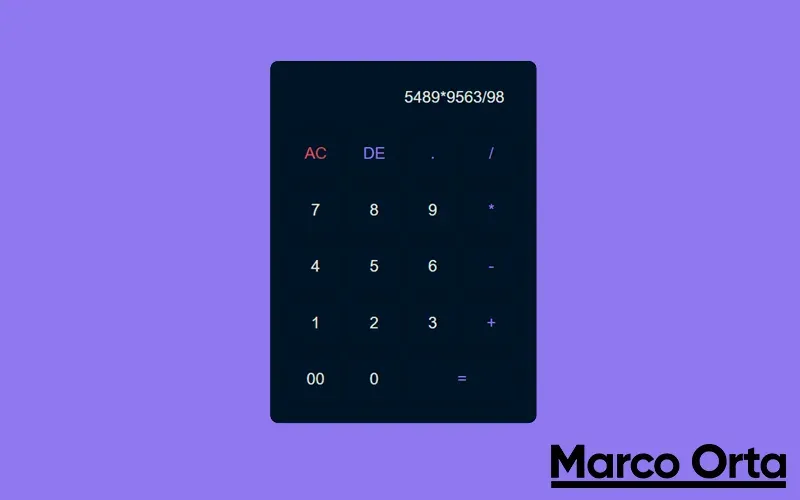
Table of Contents
Hey there! Today we’re going to build a basic calculator using only HTML, CSS and a bit of JavaScript from scratch. I’ll walk you through the code along with an explanation of the logic behind it.
The calculator we’re building will support the four basic arithmetic operations — addition, subtraction, multiplication and division — and will also include functionality to delete a single digit or clear the entire display to start a fresh calculation.
HTML Code
Inside our HTML we’ll create the main structure of the calculator using a container to hold all of our buttons and the display.
<!-- index.html -->

<html>
<head>
  <meta charset="UTF-8">
  <title>Calculadora con JavaScript</title>
  <link type="text/css" href="style.css" rel="stylesheet">
</head>
<body>
  <div id="calculator">
    <input type="text" id="display" disabled> <br />
    <button id="ac" class="operator">AC</button>
    <button id="de" class="operator">DE</button>
    <button id="." class="operator">.</button>
    <button id="/" class="operator">/</button> <br />
    <button id="7">7</button>
    <button id="8">8</button>
    <button id="9">9</button>
    <button id="*" class="operator">*</button> <br />
    <button id="4">4</button>
    <button id="5">5</button>
    <button id="6">6</button>
    <button id="-" class="operator">-</button> <br />
    <button id="1">1</button>
    <button id="2">2</button>
    <button id="3">3</button>
    <button id="+" class="operator">+</button> <br />
    <button id="00">00</button>
    <button id="0">0</button>
    <button id="=" class="equal operator">=</button> <br />
  </div>
<script src="script.js"></script>
</body>
</html>
CSS Code
In the CSS we’ll center the calculator on the screen, adjust the button sizes, and arrange all the content using Flexbox properties.
/* style.css */
body {
  text-align: center;
  margin: 0;
  background: #8877eb;
  display: flex;
  align-items: center;
  justify-content: center;
  height: 100vh;
}
#calculator {
  max-width: 360px;
  background-color: #0d1b2a;
  border-radius: 10px;
  padding: 20px;
  box-shadow: 0 10px 20px rgba(0, 0, 0, 0.19), 0 0px 0px rgba(0, 0, 0, 0.23);
}
#display {
  width: 100%;
  height: 50px;
  font-size: 20px;
  text-align: right;
  margin-bottom: 10px;
  padding: 20px;
  border-radius: 5px;
  color: #e0e1dd;
  background-color: rgba(13, 27, 42, 0.3);
  border: none;
  box-sizing: border-box;
}
.operator {
  color: #8877eb;
}
#ac {
  color: #bf4d5d;
}
.equal {
  width: calc(50% - 10px);
}
button {
  width: calc(25% - 10px);
  height: 50px;
  font-size: 20px;
  margin: 10px 5px;
  border: none;
  border-radius: 5px;
  float: left;
  background-color: rgba(13, 27, 42);
  color: #e0e1dd;
  -webkit-box-shadow: -1px 1px 30px -5px rgba(0, 0, 0, 0.2);
  -moz-box-shadow: -1px 1px 30px -5px rgba(0, 0, 0, 0.2);
  box-shadow: -1px 1px 30px -5px rgba(0, 0, 0, 0.2);
}
JavaScript Code
In the following code I’ll walk you through each function step by step, showing how we carry out our calculations quickly and with very few lines of code.
// script.js
// This will be the container that holds the input to be processed
const display = document.querySelector('#display');
// Here we collect all available buttons
const buttons = document.querySelectorAll('button');
// We loop through all available buttons
buttons.forEach((btn) => { // We listen for a click event on each button
  btn.addEventListener("click", () => {
  if(btn.id === '=') {
    /* If the selected button is our '=' we use eval to resolve the result of the expression on screen. More info:
    https://developer.mozilla.org/en/docs/Web/JavaScript/Reference/Global_Objects/eval */
    display.value = eval(display.value);
  } else if (btn.id === 'ac') {
    // If the button is 'ac' it clears everything on the display.
    display.value = '';
  } else if (btn.id === 'de') {
    // If the button is 'de' it removes the last digit on the display.
    display.value = display.value.slice(0, -1);
  } else {
    // Any other button is appended to the display as normal
    display.value += btn.id;
  }});
})
And that’s it — our calculator is complete! As you can see, writing the JavaScript logic is straightforward and easy to apply.
Security Note: Watch Out for eval
This tutorial uses eval() for simplicity, but don’t use it as-is in production. eval executes any JavaScript code it receives as a string, which opens the door to XSS if the input comes from the user. In a real project:
- To evaluate simple arithmetic expressions, use the
Functionconstructor (also dynamic, but easier to isolate):
function safeEval(expr) {
  if (!/^[\d+\-*/().\s]+$/.test(expr)) {
    throw new Error("Expression not allowed");
  }
  return Function(`"use strict"; return (${expr});`)();
}
- For a robust solution, use a parsing library like mathjs (
npm install mathjs), which evaluates expressions withoutevaland supports variables, functions and arbitrarily large numbers.
If this tutorial was helpful, don’t forget to share it with your friends. Cheers!
Found it useful? Get the next one by email
Once a week: what breaks when you upgrade, AI for developers and what I'm building, with sources. No spam.
By subscribing you accept our privacy policy.