How to Export Excel Files in Laravel 13: complete guide with Laravel Excel


Table of Contents
Generating a downloadable Excel file is one of the most common requirements in any admin panel: exporting the order list, a sales report or the customer base so the team can open it in their spreadsheet. In Laravel, the standard is still the maatwebsite/excel package (the 4.0 branch since August 2026; 3.1 now only gets security fixes), the same one we use to import Excel files.
In this guide updated for Laravel 13 you will see how to create an export class, add headings and styles, control cell formatting, export to different formats (XLSX, CSV) and — most importantly for production — move heavy exports to a queue so you don’t blow up the server’s memory.
1. Have Laravel 13 installed
If you don’t have the project ready yet, check out the dedicated guide: How to Install Laravel 13. Remember that Laravel 13 requires PHP 8.3 minimum (8.4 in practice since Laravel 13.3).
2. Installing the maatwebsite/excel package
Install the package via Composer:
composer require maatwebsite/excel
The package automatically registers its service provider and the Excel facade. If you want to tweak the default configuration (date format, storage disk, etc.), publish the config file:
php artisan vendor:publish --provider="Maatwebsite\Excel\ExcelServiceProvider" --tag=config
This creates config/excel.php, where you can change things like the csv delimiter or the default disk.
Is maatwebsite/excel compatible with Laravel 13?
Yes, on two branches. 4.0 shipped in August 2026 (4.0.3 as of September 2026). It requires PHP 8.3 and Laravel 12 or 13, and it’s what the composer require above installs on a new project today. 3.1 also declares compatibility up to Laravel 13, but its maintainers have moved it to “no active support, CVE only”, so new code should go on 4.0.
The change you’ll notice most going from 3.1 to 4.0 is that the interfaces now carry native types: your methods must declare their return types (collection(): Collection, query(): Builder, styles(...): array…) or PHP throws a fatal error when it loads the class. The examples in this guide already declare them, so they work the same on 3.1 and 4.0. Upgrading from Laravel 12 with ^3.1 in your composer.json? Your export classes keep working as-is: composer update maatwebsite/excel --with-all-dependencies won’t jump to 4.0 on its own, and if Composer complains, composer why-not laravel/framework 13.0 shows you which package is in the way. When you do migrate, the 4.0 upgrade guide covers the rest (PhpSpreadsheet 5, and FromScout instead of returning a Scout builder from FromQuery).
3. Creating the export class
All the export logic lives in a dedicated class inside app/Exports. Generate it with Artisan, tying it to a model:
php artisan make:export OrdersExport --model=Order
This creates app/Exports/OrdersExport.php with a class that implements the FromCollection concern:
<?php

namespace App\Exports;

use App\Models\Order;
use Illuminate\Support\Collection;
use Maatwebsite\Excel\Concerns\FromCollection;

class OrdersExport implements FromCollection
{
    public function collection(): Collection
    {
        return Order::all();
    }
}
The collection() method returns the data that will be dumped into the file. This alone gives you a working Excel file, but it lacks headings and formatting — we’ll improve it with the concerns in the following sections.
4. The data sources: FromCollection, FromQuery, FromView
maatwebsite/excel lets you choose where the data comes from depending on the case. These are the four main options:
FromCollection— you return an Eloquent collection or an array. Simple, but it loads everything into memory. Ideal for small volumes.FromQuery— you return an unexecuted query and the package processes it in chunks automatically. The recommended option for large tables.FromView— you render a Blade view with an HTML<table>. Perfect when you need full control of the layout or HTML styles.FromArray— for data you already have in a flat array.
Example with FromQuery, much more memory-efficient:
<?php

namespace App\Exports;

use App\Models\Order;
use Illuminate\Database\Eloquent\Builder;
use Maatwebsite\Excel\Concerns\FromQuery;
use Maatwebsite\Excel\Concerns\Exportable;

class OrdersExport implements FromQuery
{
    use Exportable;

    public function query(): Builder
    {
        return Order::query()->where('status', 'completed');
    }
}
5. Headings and column mapping
An Excel file without headings isn’t much use. Add the WithHeadings concern for the title row and WithMapping to decide exactly which columns and in what format each row is exported:
<?php

namespace App\Exports;

use App\Models\Order;
use Illuminate\Database\Eloquent\Builder;
use Maatwebsite\Excel\Concerns\FromQuery;
use Maatwebsite\Excel\Concerns\WithHeadings;
use Maatwebsite\Excel\Concerns\WithMapping;

class OrdersExport implements FromQuery, WithHeadings, WithMapping
{
    public function query(): Builder
    {
        return Order::query()->with('customer');
    }

    public function headings(): array
    {
        return ['ID', 'Customer', 'Total', 'Status', 'Date'];
    }

    public function map($order): array
    {
        return [
            $order->id,
            $order->customer->name,
            number_format($order->total, 2),
            ucfirst($order->status),
            $order->created_at->format('m/d/Y'),
        ];
    }
}
Notice the with('customer'): eager-loading the relationship prevents the N+1 problem when you export thousands of rows. The map() method is also the perfect place to format dates and amounts the way the end user wants to see them.
Watch out for formula injection
map() is also where formula injection (a.k.a. CSV injection) sneaks in. If a column carries text a user typed — the customer’s name, a comment — a cell starting with =, +, -, or @ can open as a formula in Excel or LibreOffice: a =HYPERLINK(...) pointing somewhere else, or a formula that leaks data from the sheet. XLSX is even more direct, because PhpSpreadsheet’s default value binder stores any text starting with = as a formula.
The mitigation OWASP recommends is to neutralize those cells before writing them, by prefixing a single quote:
private function safeText(?string $value): ?string
{
    return $value !== null && preg_match('/^[=+\-@\t\r\n]/', $value)
        ? "'" . $value
        : $value;
}

// in map():
$this->safeText($order->customer->name),
Apply it only to free-text columns, not to amounts or dates (a legitimate -150.00 is a negative number). And don’t treat it as bulletproof: OWASP itself warns that Excel can strip the quote if someone saves and reopens a CSV.
6. Cell styles and formatting
To make the report look professional, apply auto-sizing, bold headings and proper number formatting:
use Maatwebsite\Excel\Concerns\ShouldAutoSize;
use Maatwebsite\Excel\Concerns\WithStyles;
use Maatwebsite\Excel\Concerns\WithColumnFormatting;
use PhpOffice\PhpSpreadsheet\Worksheet\Worksheet;
use PhpOffice\PhpSpreadsheet\Style\NumberFormat;

class OrdersExport implements FromQuery, WithHeadings, WithMapping, ShouldAutoSize, WithStyles, WithColumnFormatting
{
    // ...query(), headings() and map() as before...

    public function styles(Worksheet $sheet): array
    {
        return [
            1 => ['font' => ['bold' => true]], // headings in bold
        ];
    }

    public function columnFormats(): array
    {
        return [
            'C' => NumberFormat::FORMAT_NUMBER_COMMA_SEPARATED1, // Total column
        ];
    }
}
ShouldAutoSizefits column widths to the content.WithStylesgives you access to the PhpSpreadsheetWorksheetobject for advanced styles (colors, borders, alignment).WithColumnFormattingapplies number, currency or date formats per column.
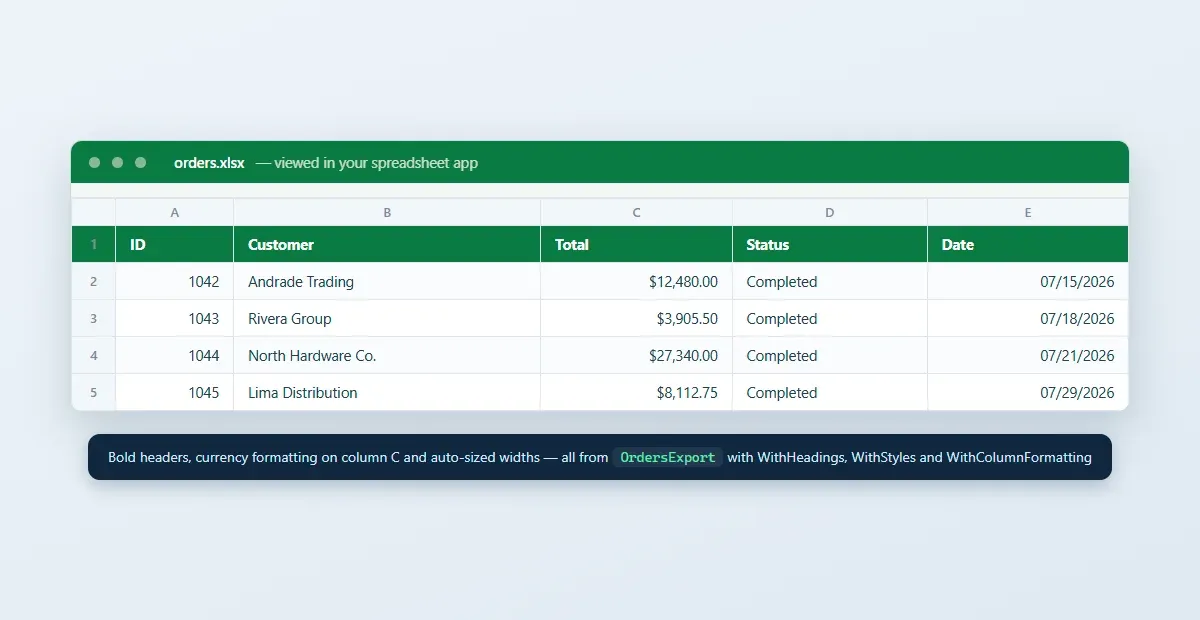
The resulting file: bold headers, currency formatting on column C and auto-sized widths — all declared in the export class
7. Downloading and storing the file
With the class ready, triggering it from a controller is trivial. The Excel facade offers two main operations:
<?php

namespace App\Http\Controllers;

use App\Exports\OrdersExport;
use Maatwebsite\Excel\Facades\Excel;

class OrderController extends Controller
{
    // Direct download to the browser
    public function export()
    {
        return Excel::download(new OrdersExport, 'orders.xlsx');
    }

    // Store on a Laravel disk (local, s3, etc.)
    public function store()
    {
        Excel::store(new OrdersExport, 'reports/orders.xlsx', 's3');

        return back()->with('status', 'Report generated');
    }
}
And the corresponding route:
use App\Http\Controllers\OrderController;

Route::get('/orders/export', [OrderController::class, 'export'])->name('orders.export');
Excel::download() forces the download in the browser; Excel::store() writes the file to any disk configured in config/filesystems.php — useful for scheduled reports or to email them afterwards.
8. Exporting to different formats (XLSX, CSV)
The same export works for several formats: just indicate the extension and the writer type as the third argument:
use Maatwebsite\Excel\Excel as ExcelWriter;

// CSV
Excel::download(new OrdersExport, 'orders.csv', ExcelWriter::CSV);

// XLSX (the default if you don't specify anything)
Excel::download(new OrdersExport, 'orders.xlsx', ExcelWriter::XLSX);
If what you need is a quick conversion of JSON data to CSV without setting up a whole export in Laravel, you can use my JSON to CSV converter for one-off tests.
9. Large exports: queued processing
This is the difference between a tutorial and production code. Exporting 100,000 rows synchronously exhausts memory and times out. The solution is twofold: use FromQuery (which already processes in chunks) and implement ShouldQueue to move the work to a background worker.
use Maatwebsite\Excel\Concerns\FromQuery;
use Maatwebsite\Excel\Concerns\WithHeadings;
use Illuminate\Contracts\Queue\ShouldQueue;

class OrdersExport implements FromQuery, WithHeadings, ShouldQueue
{
    // ...
}
And you dispatch it to the queue with queue():
public function export()
{
    (new OrdersExport)->queue('reports/orders.xlsx', 's3');

    return back()->with('status', 'The report is being generated; we will email you when it is ready.');
}
The package splits the export into jobs that are processed independently, keeping memory usage under control. Combine it with Laravel queues on Redis and notify the user by email or broadcasting when the file is ready on the disk.
10. Multiple sheets in a single file
For complex reports — for example, one sheet per month or per branch — implement WithMultipleSheets:
use Maatwebsite\Excel\Concerns\WithMultipleSheets;

class AnnualReportExport implements WithMultipleSheets
{
    public function sheets(): array
    {
        $sheets = [];

        foreach (range(1, 12) as $month) {
            $sheets[] = new OrdersPerMonthSheet($month);
        }

        return $sheets;
    }
}
Each element of the array is itself an export class (which can implement WithTitle to name the tab). That way you generate a single .xlsx with twelve sheets from one download().
Conclusion
Exporting to Excel in Laravel 13 is straightforward with maatwebsite/excel: you create an export class, choose the right data source (FromQuery for large volumes), add headings and styles with the concerns, and trigger the download from the controller. The key for production is to never export large datasets synchronously: FromQuery + ShouldQueue keeps your app stable at any volume.
To keep building your admin panel:
- How to Import Excel Files in Laravel — the inverse operation, with validation and chunking.
- How to Optimize Your Laravel Project’s Performance — so your queues and exports fly with Octane and FrankenPHP.
- How to Build a REST API with Laravel — expose your reports as endpoints.
Found it useful? Get the next one by email
Once a week: what breaks when you upgrade, AI for developers and what I'm building, with sources. No spam.
By subscribing you accept our privacy policy.